
The answer to what is on your screen, on your phone.
Select a text or press one shortcut. Colve asks the AI and delivers the answer to your phone in seconds, without leaving what you are doing.
$20.00 for 30 days. One payment, nothing renews automatically.
From nothing to your first answer, in seven small steps.
You need a computer with Windows, macOS or Linux, and a phone connected to the internet. It takes about five minutes.
- 1
Create your account
Press Create account and write your name, your email and a password.
Write the email carefully, letter by letter. You sign in with it later inside the application.
Create account - 2
Subscribe
After you create the account, open the subscriptions page and pay once with PayPal or a card.
If someone gave you a coupon code, write it in the Coupon code box before you pay and press Apply. The price goes down right away.
Nothing renews by itself. When the days end, you pay again only if you want to.
Open subscriptions - 3
Download Colve and install it
Press the download button below and wait until the file finishes downloading. If the browser asks whether to keep the file, choose Keep.
Open the downloaded file. Its name starts with Colve-Setup. Press Next, then Install, then Finish.
If Windows shows a blue box saying that it protected your PC, press More info, then Run anyway. It appears because Colve is a new program.
Colve opens when the installer finishes. Later you open it from its icon on the desktop.
Download forWindowsVersion 0.12.4, 108 MBDownload forMacVersion 0.2.5, 218 MBDownload forLinuxVersion 0.1.0, 94 MB - 4
Open Colve and sign in
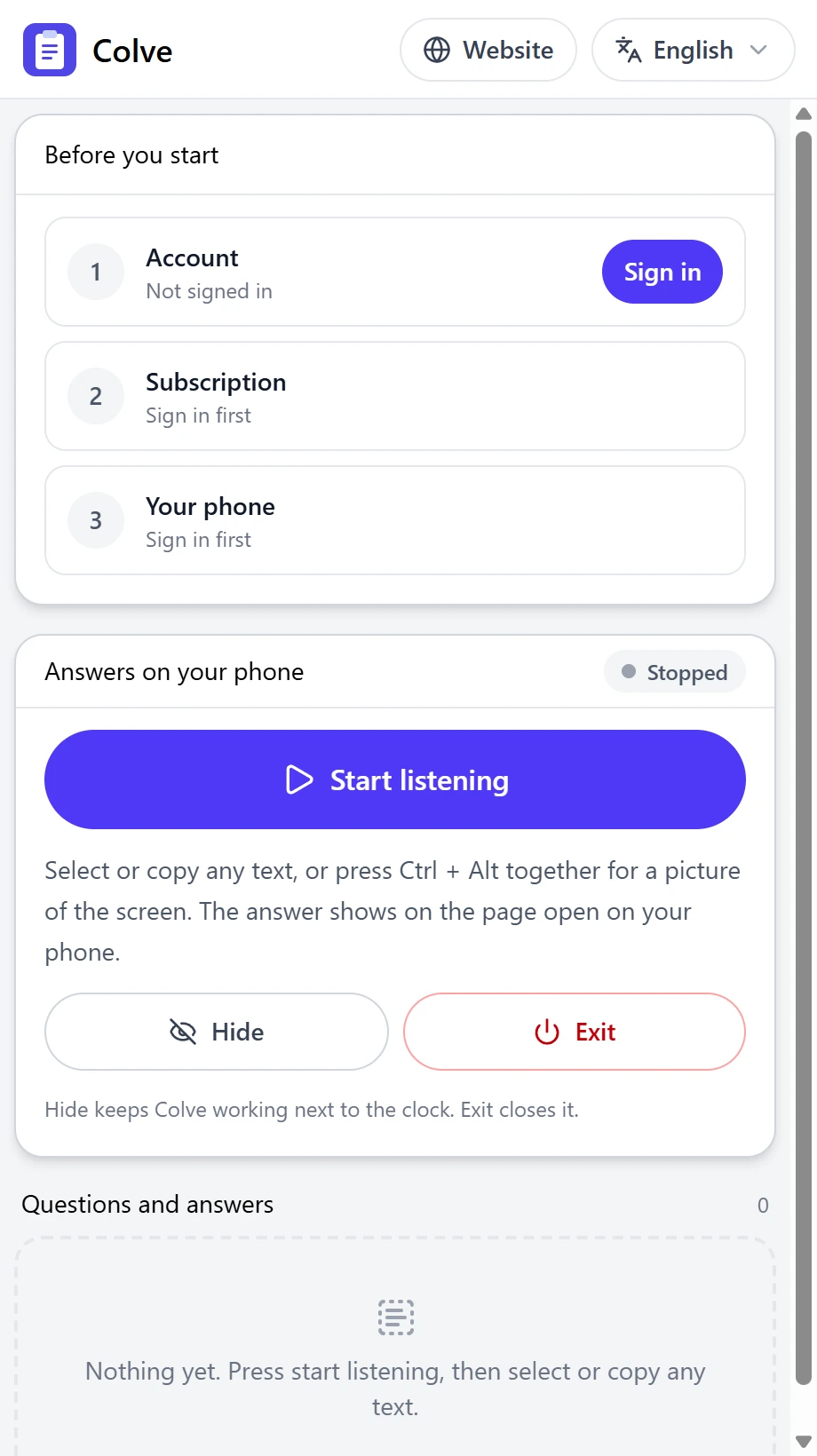
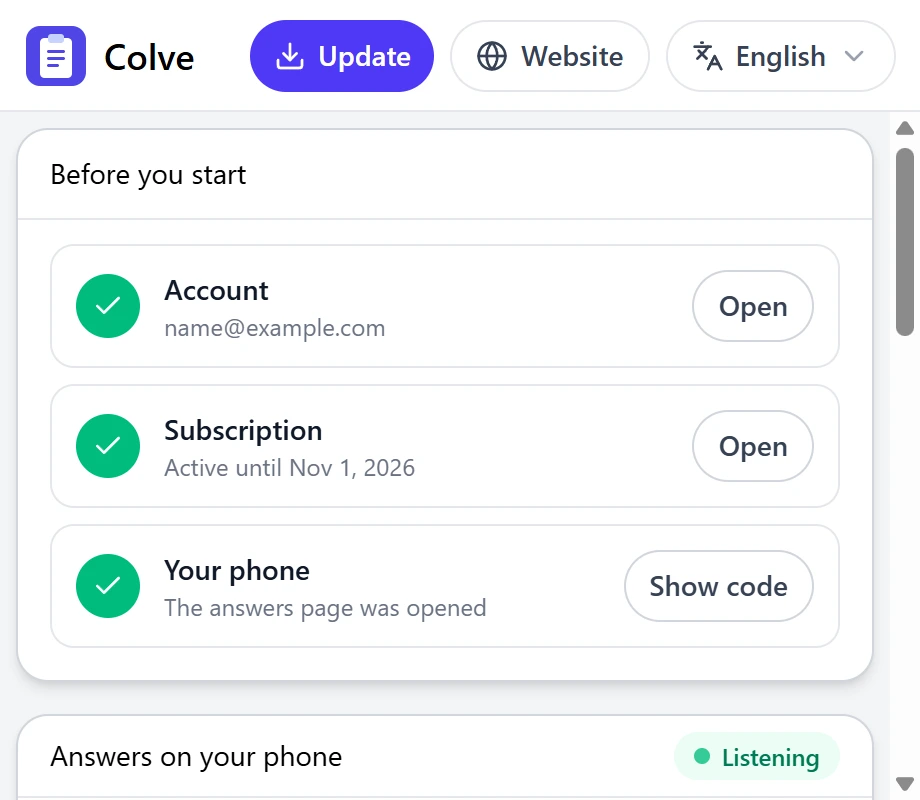
Colve opens on a page with three steps. Press Sign in.
Write the same email and password you created in step 1. The eye inside the password box shows what you typed.
If the Subscription step is not green yet, it turns green by itself within half a minute after you pay, or press Check now.
- 5
Open the answers page on your phone
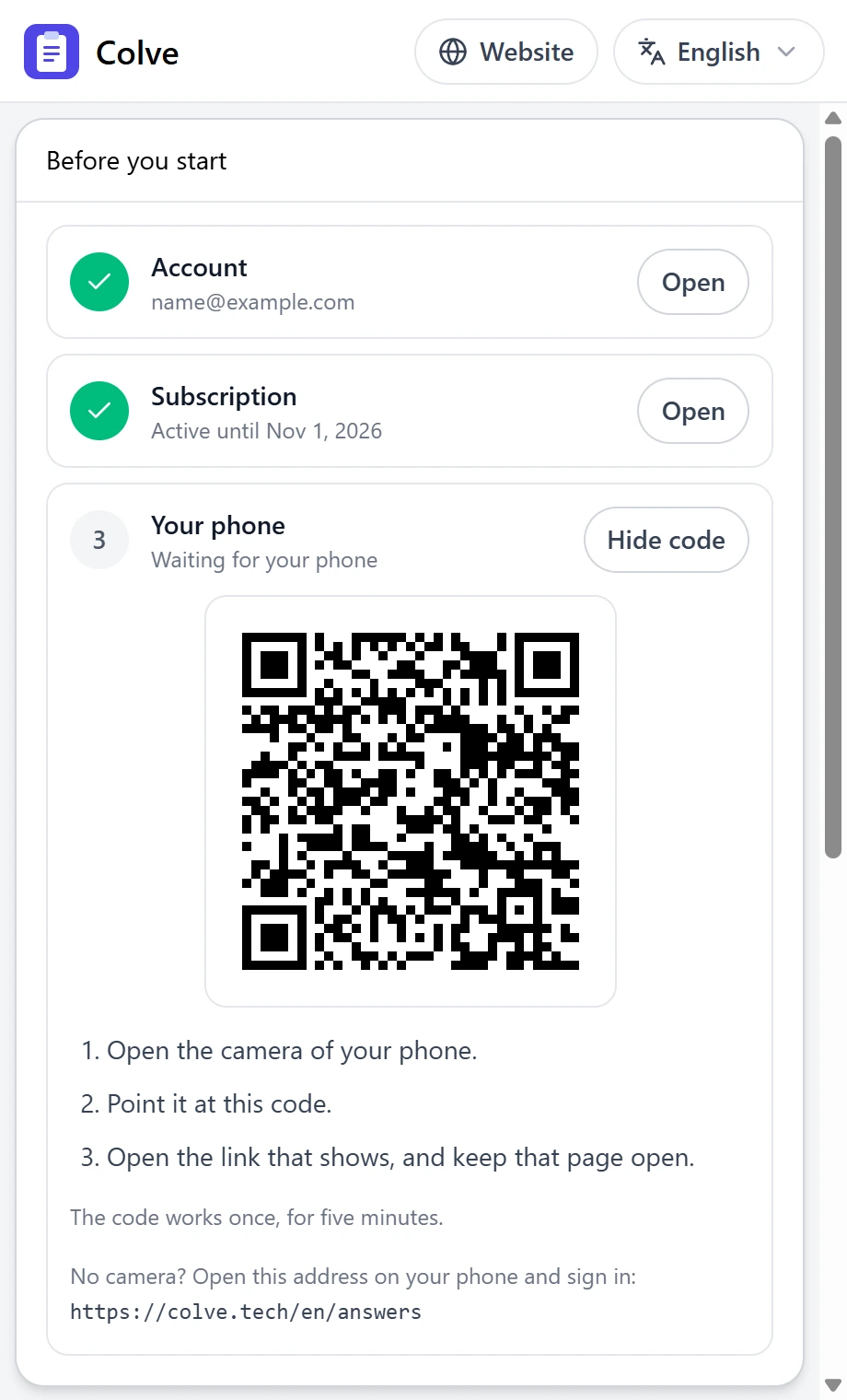
In Colve, next to Your phone, press Show code. A square code appears.
Open the camera of your phone and point it at the code. A link shows on the phone. Press it.
The phone opens the answers page of Colve. Keep that page open.
The code works once, for five minutes. If it expires, press Show code again. You do this once, and the phone stays connected for 30 days.
No camera? Type colve.tech/answers in the browser of your phone, then sign in with your email and password.
- 6
Start listening
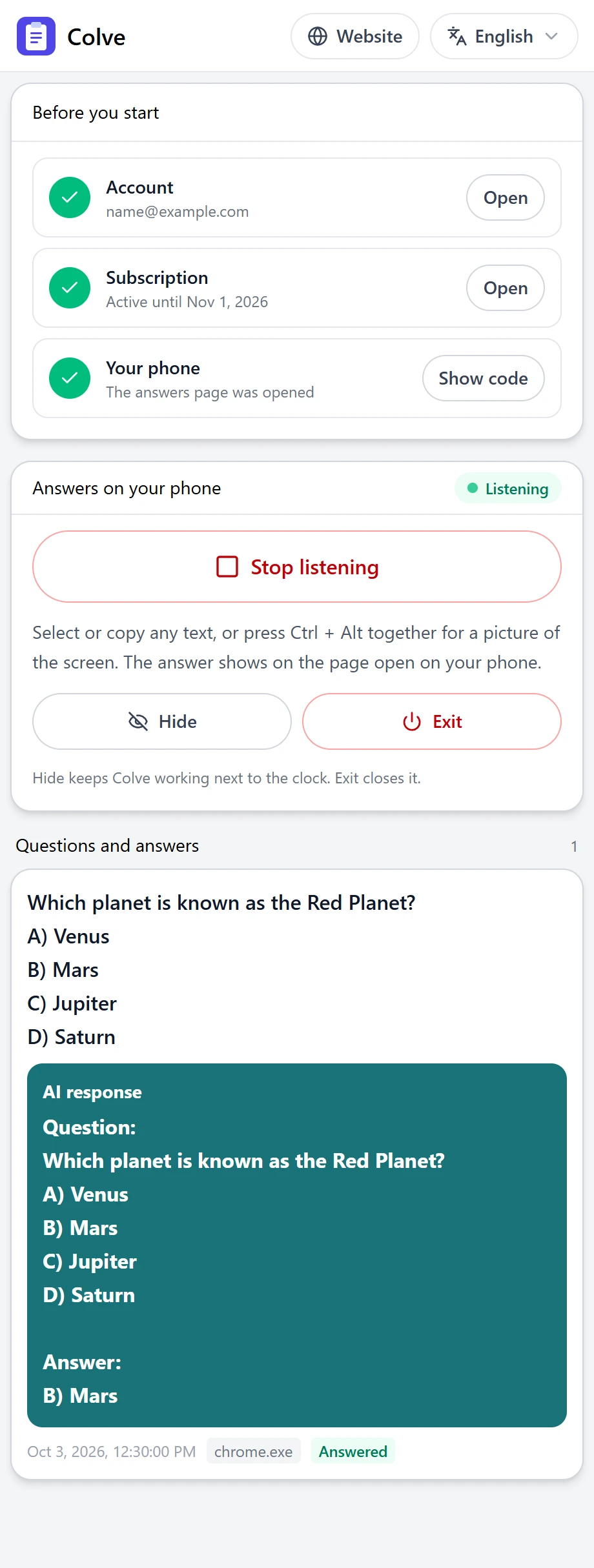
Press Start listening.
Now select any text with the mouse, in any program, or copy it.
For a question inside a picture, press Ctrl and Alt together and let go. Colve sends a picture of the screen instead.
Hide keeps Colve working next to the clock. Press Stop listening or Exit when you are done.
- 7
Read the answers on your phone
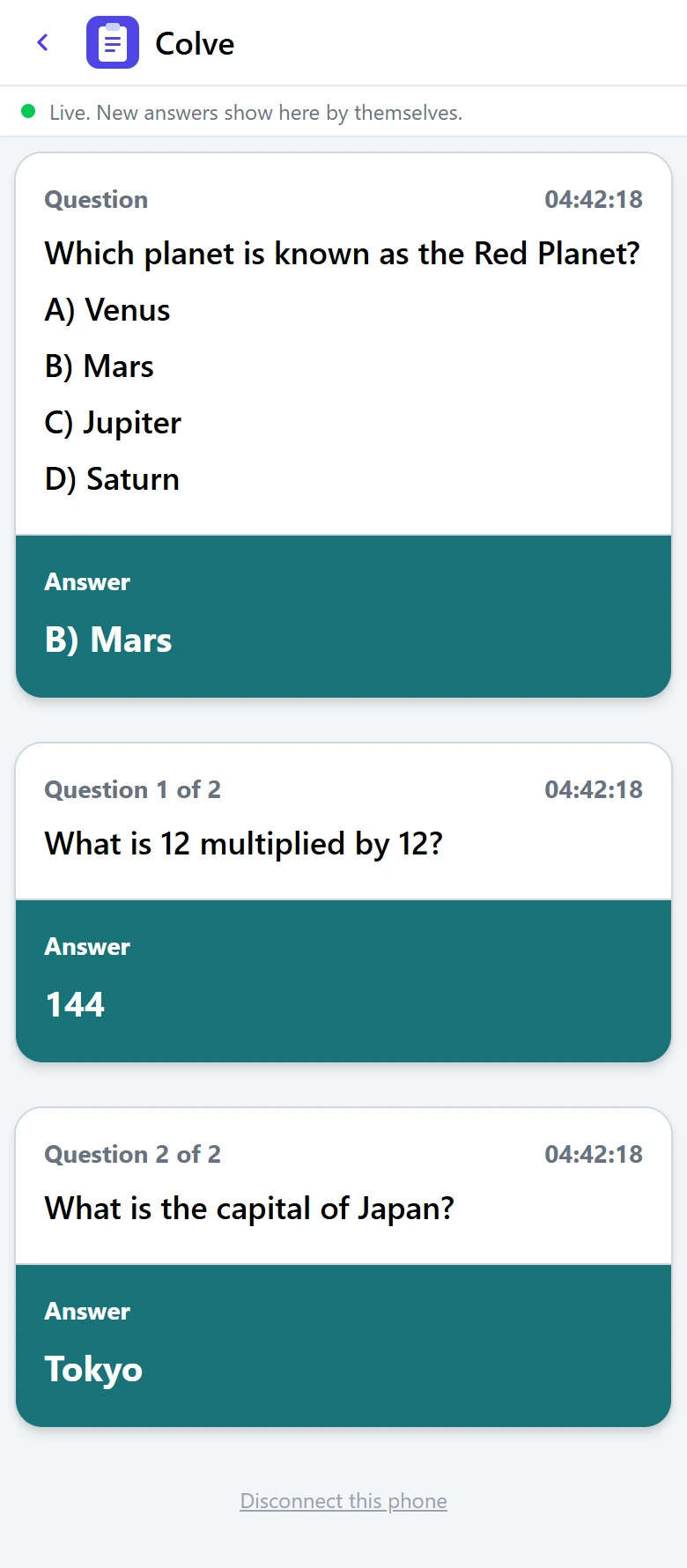
Each answer shows on the answers page within seconds, by itself. You do not need to refresh the page.
The question is in the white part, and its answer is in the colored part under it. The newest is at the top.
When a text or a picture holds several questions, each question gets its own card, in their order.
Keep the page open and the phone connected to the internet. If you close it, open it again the same way, and your earlier answers are still there.
When a new version is out
An Update button appears at the top of Colve. Press it once.
Colve downloads the new version, installs it, and opens again by itself. Until you press it, Colve keeps working as it is.
On a Mac
- Press Download for Mac in step 3 and open the downloaded file. In the window that opens, drag Colve onto the Applications folder, then open Colve from Applications.
- The first time, macOS may say that it cannot check Colve. Open System Settings, then Privacy & Security, scroll down, and press Open Anyway.
- Colve on a Mac shows a fourth step, Mac permissions. Press Allow next to Accessibility and switch Colve on in the list that opens. Do the same for Screen Recording, then press Reopen Colve.
- The shortcut for a picture of the screen is Control and Option together, in place of Ctrl and Alt. When you press Hide, Colve leaves the screen and the Dock and keeps working. To show it again, press Control, Command and C together, or open Colve again from Applications.
- When a new version is out, press Update in Colve. It opens this page: download the new file, press Quit in Colve, then drag Colve onto Applications again, in place of the old one, and open it. If macOS says again that it cannot check Colve, do as in point 2. The new version asks for the two permissions again: press Allow and switch Colve on, as the first time.
On Linux
- Press Download for Linux in step 3. The file ends in .deb and is made for Ubuntu, Debian, Linux Mint and the systems built on them. Open the downloaded file, press Install, and type your password when the system asks. Then open Colve from the applications menu.
- Colve works on a session that uses X11. Ubuntu starts on Wayland, so log out, and on the sign-in screen press your name, then the gear at the bottom, choose Ubuntu on Xorg, and sign in. If you press Start listening on Wayland, Colve tells you the same.
- The shortcut for a picture of the screen is the same, Ctrl and Alt together. When you press Hide, Colve keeps working in the notification area. To show it again, press its icon there, or open Colve again from the applications menu.
- When a new version is out, press Update in Colve. It opens this page: download the new file and open it, and it installs over the old one.
Try it on a practice exam first.
It works like a real online exam: it asks for your camera and your screen, then shows ten questions with options. Start Colve, enter, and watch the answers show on your phone. Nothing is recorded or sent.
Open the practice examBuilt to stay out of your way.
Get your first answer in minutes.
Create your account, subscribe, and let Colve answer what is on your screen.
Get Started